The Home Network Latency Reduction Protocol: Improving Your Internet Stability
Why Latency Is the Hidden Villain of Connectivity
Many users conflate internet speed—the bandwidth that determines how much data you can download—with latency, or 'ping.' Latency is the time it takes for a data packet to travel from your device to a server and back. High latency causes stuttering video calls, 'rubber-banding' in online gaming, and sluggish page loads. Even with a high-speed fiber connection, high latency makes the internet feel unresponsive. This protocol is designed to help you shave milliseconds off your round-trip time and stabilize your home connection.
Step 1: Physical Infrastructure Optimization
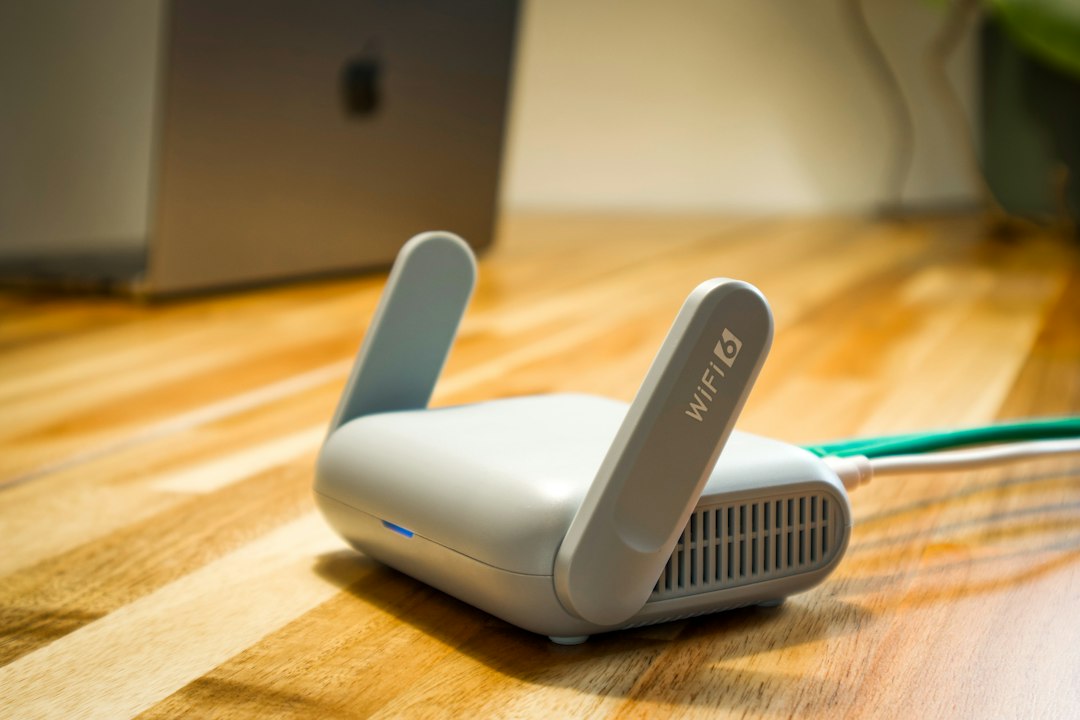
The single most effective way to reduce latency is to stop relying on Wi-Fi for critical devices. Wireless signals are subject to interference from walls, appliances, and neighbor networks, all of which introduce packet loss and jitter. Use Cat6 or Cat6a Ethernet cables for your desktop workstation, gaming consoles, and smart TVs. If you cannot hardwire everything, ensure your router is placed in an open, central location, at least three feet off the ground, away from metal objects and microwaves that disrupt the 2.4GHz signal.
For the lowest possible latency, hardwire your primary devices directly to the router using shielded Ethernet cabling.
Step 2: Mitigating Wireless Interference
In modern living spaces, the airwaves are crowded. If you must use Wi-Fi, you need to manage your radio environment. Log into your router's administrative dashboard and audit your channel settings. In the 2.4GHz band, only channels 1, 6, and 11 are non-overlapping; using others will cause performance degradation. For 5GHz, use a tool like a Wi-Fi analyzer app to identify which channels your neighbors are using and manually switch to a clearer one. Avoid 'Auto' channel selection if the router is failing to pick the quietest frequency.
Step 3: Implementing Quality of Service (QoS)
The Quality of Service (QoS) feature on your router acts as a traffic controller, prioritizing critical data packets. Without QoS, a large background download or a 4K stream can choke your network, causing your video calls to drop. Access your router settings, locate the QoS section, and define your primary device as the 'Highest Priority.' Many modern routers have 'Gaming' or 'Video Conferencing' modes that automatically prioritize real-time traffic, ensuring your voice data takes precedence over a Netflix buffer.
Step 4: DNS and Firmware Maintenance
The DNS server provided by your ISP is often congested and slow. DNS is the 'phonebook' that translates domain names into IP addresses. By switching to a more robust provider like Cloudflare (1.1.1.1) or Google (8.8.8.8), you can reduce the initial lookup time when opening new websites. Furthermore, ensure your router's firmware is updated. Manufacturers frequently release patches that improve hardware stability and throughput. Set a calendar reminder to check for firmware updates once every quarter.
Ultimately, a high-performance network is not a 'set it and forget it' system. By periodically auditing your connection, clearing physical obstructions, and managing your router's traffic priorities, you create a responsive digital environment. These small adjustments compound over time, turning a frustratingly laggy connection into a seamless, high-speed experience for work and play.