The Cross-Platform Clipboard Synchronization Protocol: Master Your Workflow
Stop emailing links to yourself. Learn how to master seamless text and file synchronization across all your devices.
The Invisible Productivity Tax
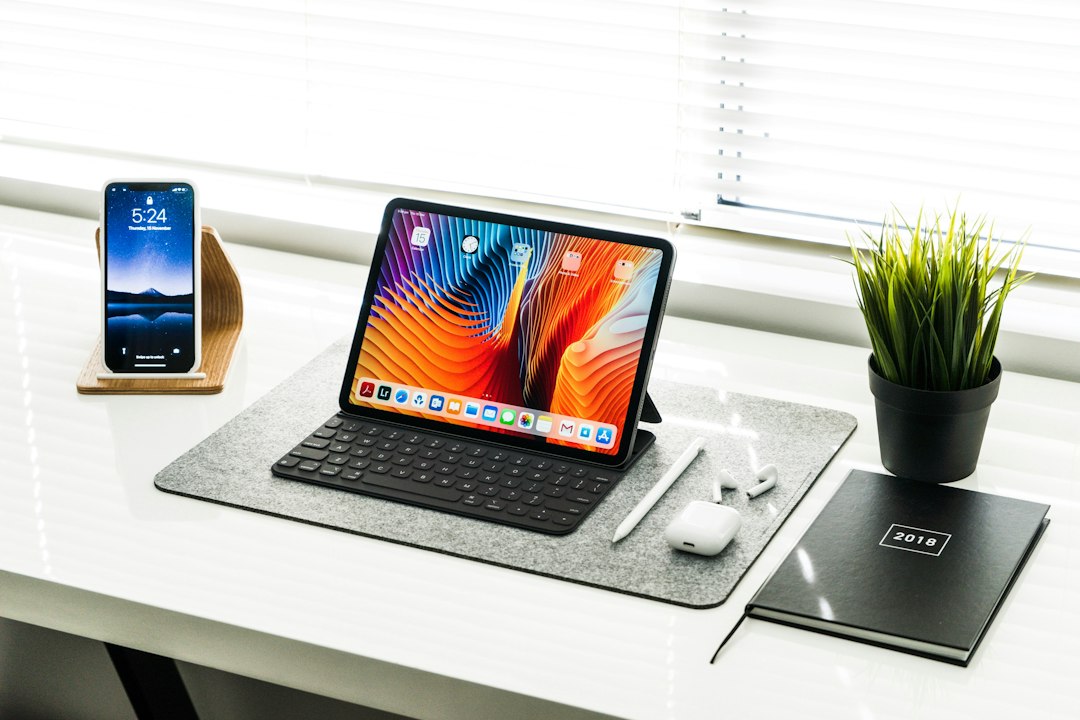
How many times have you copied a complex URL, a snippet of code, or a draft sentence on your phone, only to realize you need it on your desktop five seconds later? Most people resort to 'emailing themselves' or opening a private chat window to bridge the gap. This is the invisible productivity tax—a constant, low-level friction that breaks your focus and wastes precious seconds. Mastering cross-platform clipboard synchronization isn't just about convenience; it is about creating a unified digital workspace where your devices act as a single, cohesive unit.
The goal is to reach a state of 'instant availability' where any text, image, or link you copy on Device A is immediately ready to be pasted on Device B. By implementing a standardized protocol for your clipboard, you eliminate the mental context-switching required to move data, allowing you to maintain flow state regardless of which device you are currently holding.
Selecting Your Synchronization Infrastructure
The first step is choosing the right tool for your specific ecosystem. If you are deeply entrenched in the Apple ecosystem, the built-in Universal Clipboard is your baseline. However, for those working in mixed environments—Windows, Android, Linux, or macOS—you need a third-party bridge. Tools like KDE Connect, ClipClip, or specialized password manager features offer robust solutions.
- Evaluate your ecosystem: If all your devices are Apple, enable Handoff in system settings. For cross-platform users, look into open-source utilities that offer encrypted sync.
- Security considerations: Always check if the clipboard manager encrypts data in transit. Your clipboard often contains sensitive information like passwords or private notes.
- Latency vs. Privacy: Local network sync (like KDE Connect) is faster and more private, while cloud-based sync offers accessibility even when your devices are on different networks.
The most efficient tools are the ones you do not have to think about. If a clipboard manager requires you to open an app every time you want to sync, it has already failed its primary purpose. Seek background-service solutions.
The Protocol of Intentional Copying
Even with perfect software, you must adopt a 'clipboard hygiene' mindset. The most common mistake is failing to clear your clipboard after copying sensitive information. If you copy a password, it is now synced to every device in your fleet. To mitigate this risk, establish a two-tier workflow: use a dedicated password manager for credentials and the sync protocol for ephemeral tasks like URLs, article snippets, and research notes.
Furthermore, learn the limitations of your system. Most clipboard managers have a 'clear history' timer. Set yours to flush every 24 hours to ensure that you do not accidentally paste a sensitive address or phone number weeks after you copied it. This proactive cleanup prevents the accidental leakage of data into your secondary devices.
Advanced Integration: From Text to Context
Once you have mastered text synchronization, take it a step further by syncing file paths or cloud-based document links instead of large raw files. Sending a 50MB image across your clipboard isn't just slow; it’s inefficient. Instead, copy the public link to the image or the file path if you are working within a shared cloud drive like Dropbox or Google Drive. This keeps your clipboard buffer light and responsive.
Finally, practice the 'One-Pass Paste' rule. When you copy something, immediately navigate to the target device and paste it. If you find yourself copying multiple items in a row, you are likely missing an opportunity to use a bulk-transfer tool or a shared draft document. Your clipboard is a short-term memory buffer, not a long-term storage solution. Treat it as a high-speed transit lane, not a warehouse.
Common Pitfalls and Maintenance
The primary reason these systems fail is connectivity dropouts or background service termination. On mobile devices, operating systems are aggressive about killing background processes to save battery. Ensure your clipboard sync app is whitelisted in your battery optimization settings. Without this, your sync will intermittently stop, causing you to lose work when you need it most.
Lastly, regularly audit your synced items. If your history is filled with junk—repeated links, accidental double-copies, or legacy data—you are adding unnecessary noise to your workflow. Spend two minutes every Friday clearing your clipboard history cache to keep your 'mental workspace' as tidy as your physical desk. By treating your clipboard as a managed resource rather than a bottomless pit, you gain a significant edge in daily productivity.